MCP is the universal protocol for AI-to-tool integration. MCPApps extend it with interactive UIs.
MCP Server = AI can do things. MCP App = AI can show things, interactively.
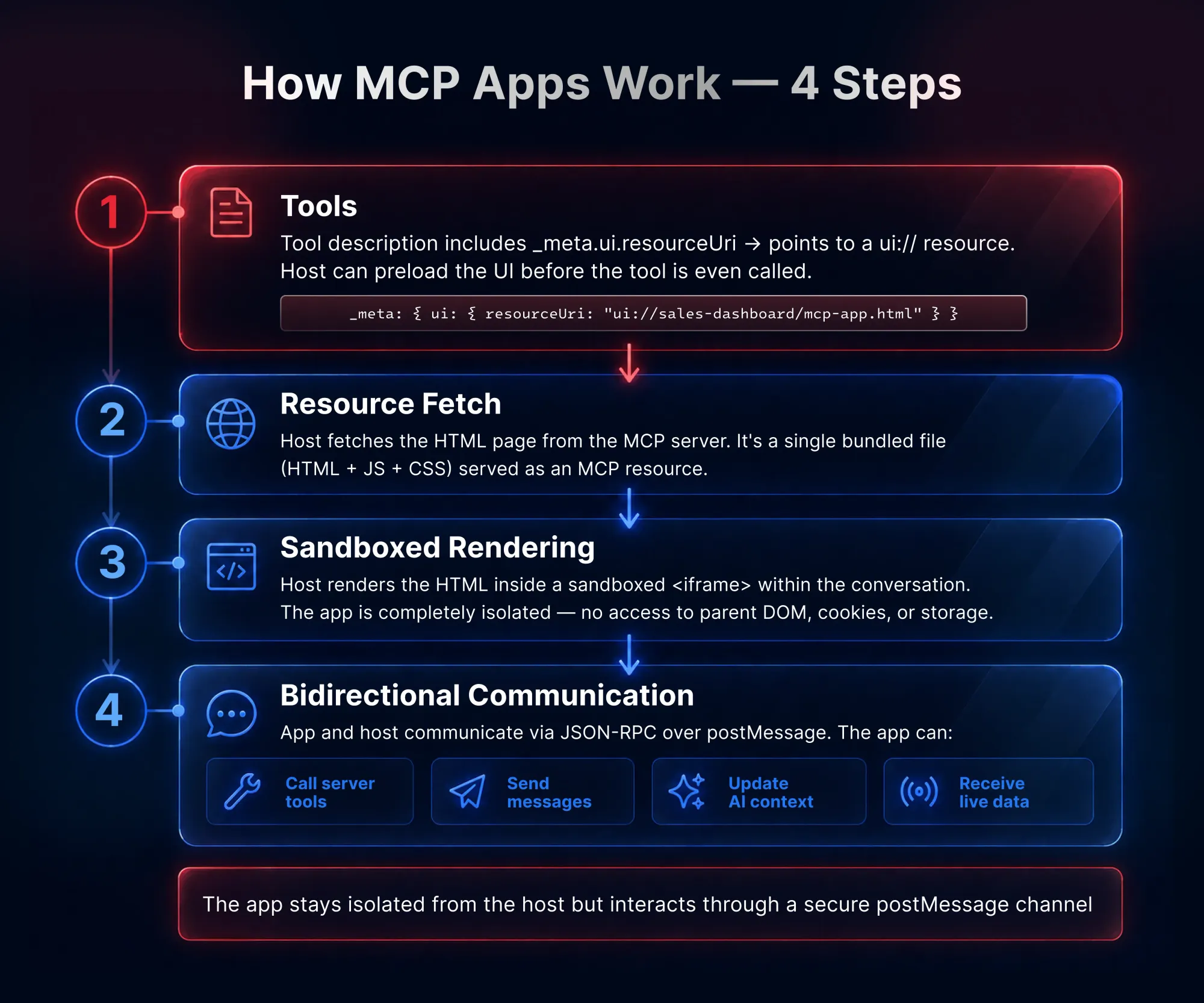
The architecture is elegant: tools declare a ui:// resource → host fetches and renders HTML in a sandboxed iframe → bidirectional JSON-RPC over postMessage.
Security is built in: sandboxed iframes, no DOM access, CSP-controlled, permission-gated.
Building an MCP App requires just two registrations on the server (registerAppTool + registerAppResource) and the App class on the client.
What if your AI assistant could show you an interactive UI with a chart, a 3D model, or a live dashboard — right inside the chat window?
The problem: AI conversations hit a wall
Imagine this: you’re chatting with an AI assistant at work and you ask, “Show me our sales data by region for Q4.”
The AI responds with a wall of text:
North America: $2.4M
Europe: $1.8M
Asia Pacific: $1.2M
Latin America: $620K...
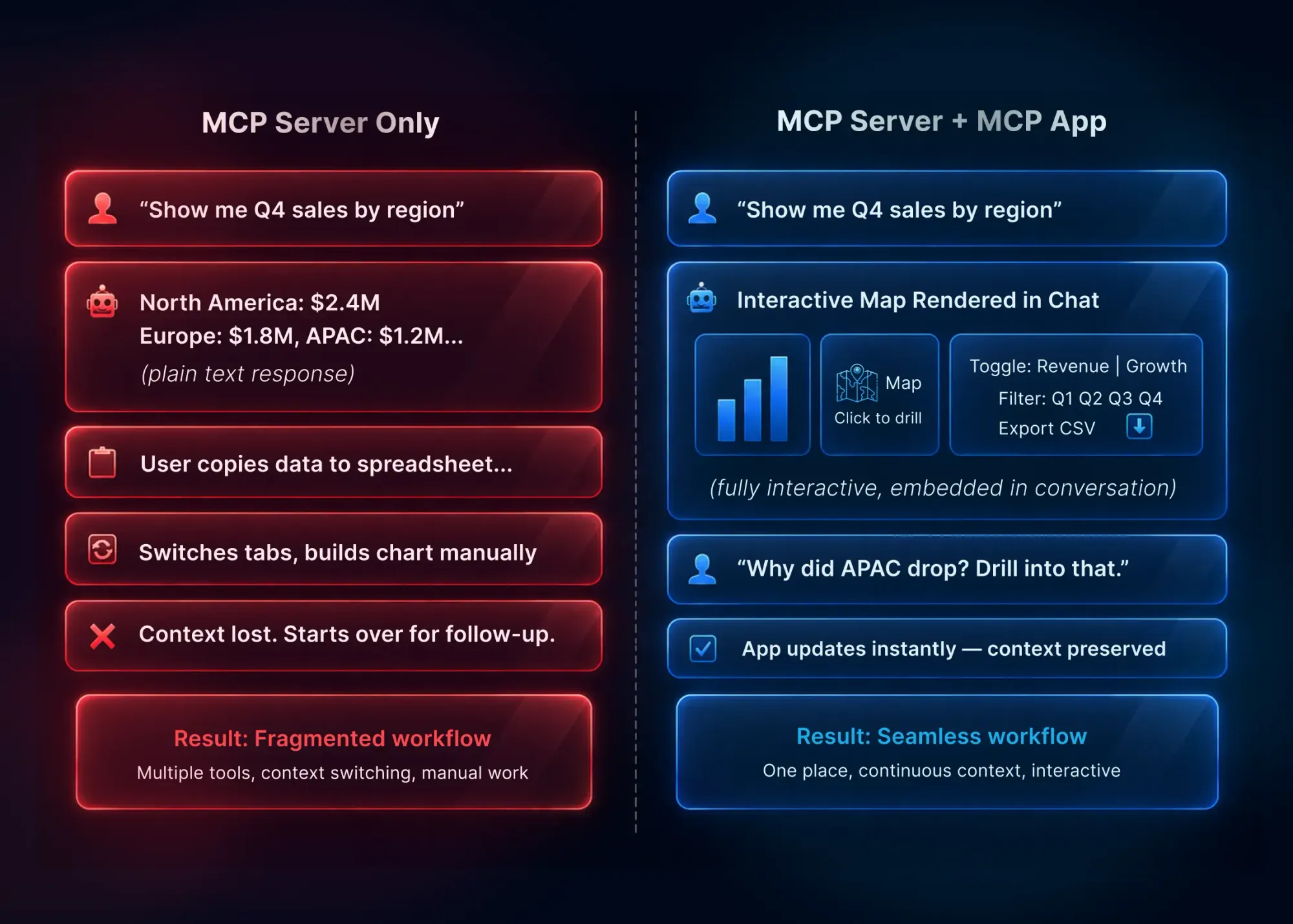
You squint at the numbers. You copy-paste them into a spreadsheet. You open a separate charting tool. You switch tabs, lose context, and by the time you have a visual, you’ve forgotten what follow-up question you wanted to ask.
Now imagine the AI responds with an interactive map — right there in the chat. You click on regions to drill down. You hover for details. You toggle between revenue and growth rate. And when you spot something interesting, you just type your next question — the AI already knows what you’re looking at.
Before diving into MCP Apps, let’s quickly understand the foundation they’re built on.
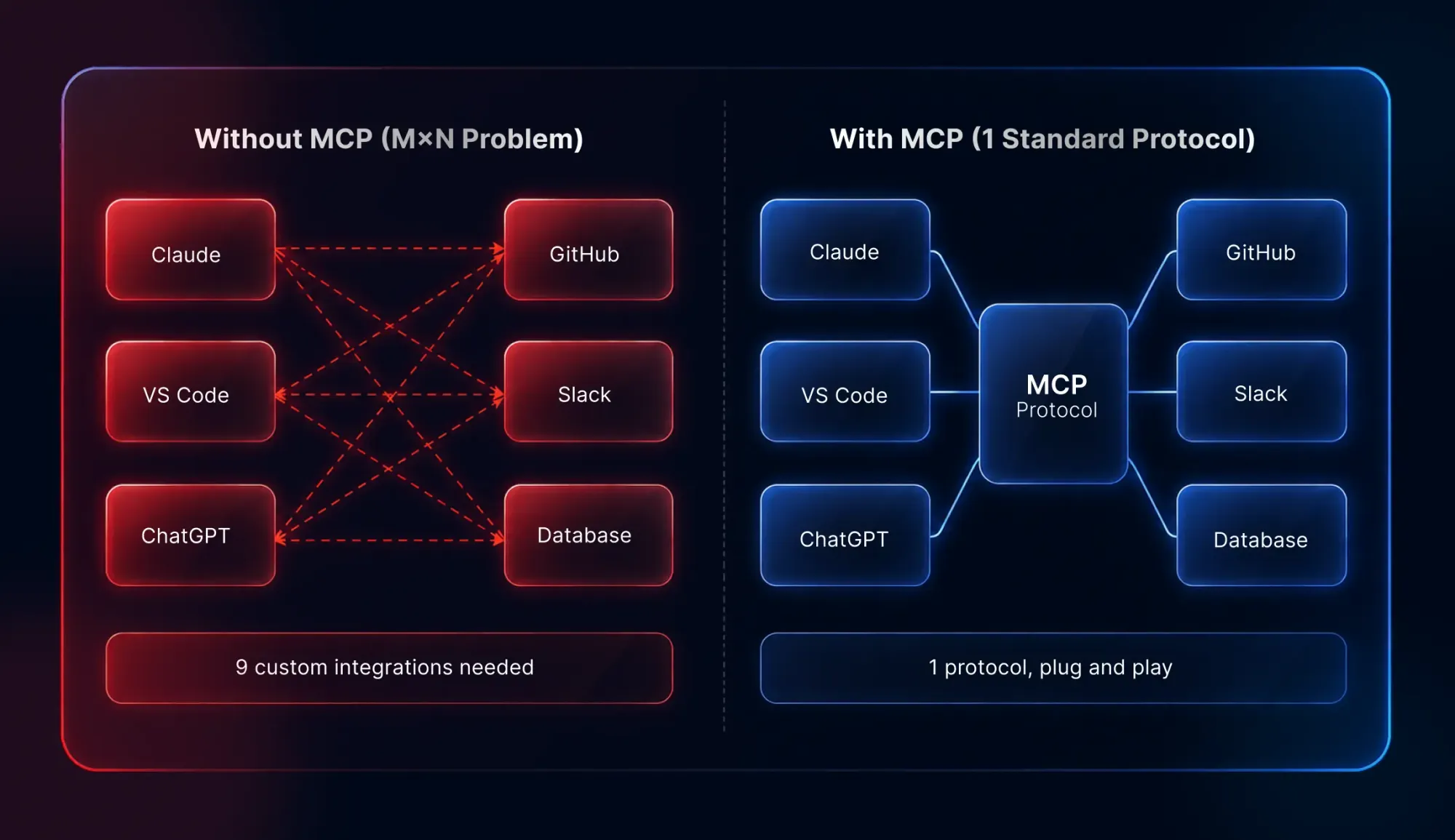
MCP (Model Context Protocol) is an open standard created by Anthropic that defines how AI models connect to external tools and data sources. Think of it as USB for AI integrations — one universal protocol that lets any AI application talk to any tool.
How MCP actually works
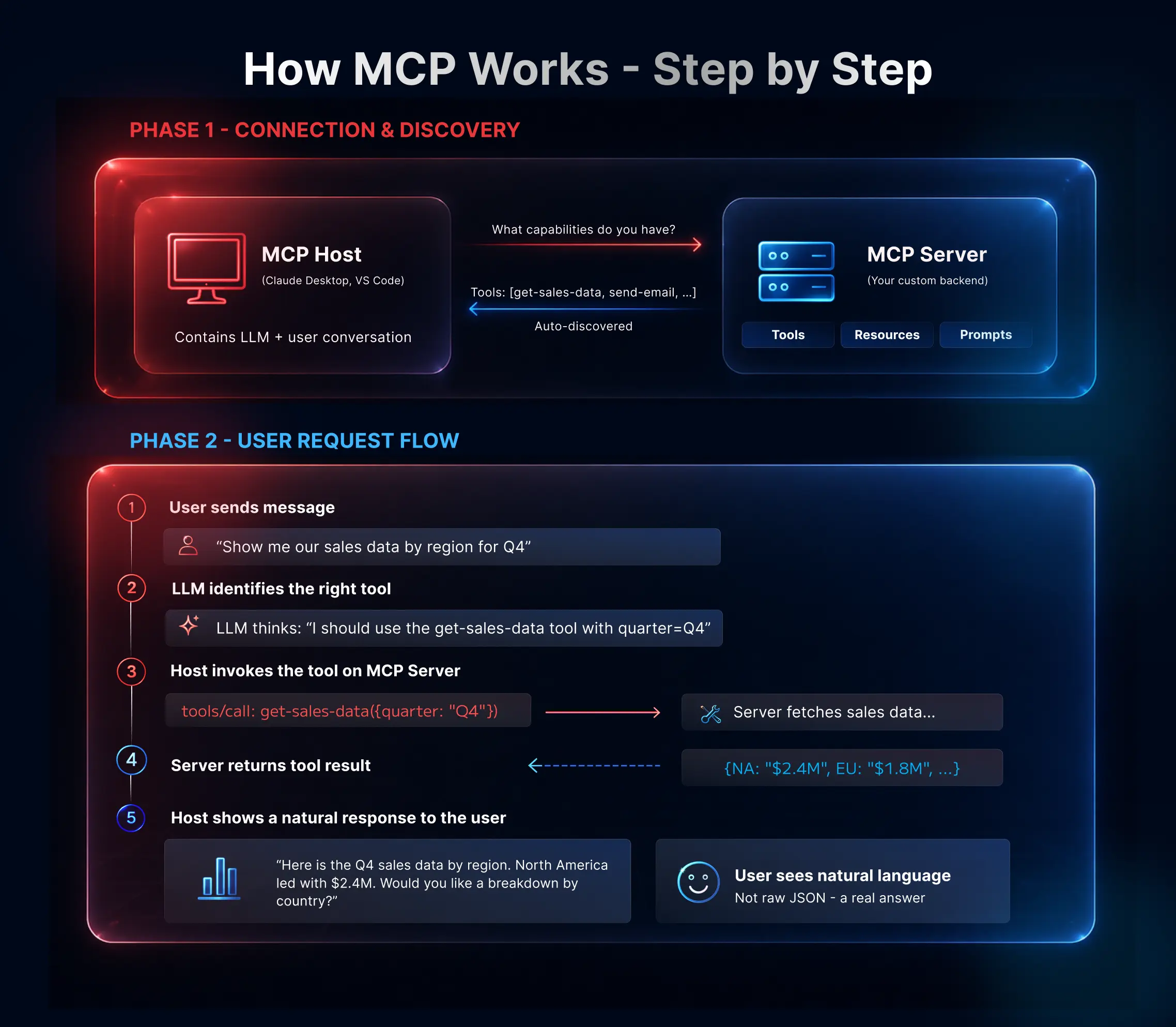
At its core, MCP is a conversation between two parties: the MCP Host (like Claude Desktop or VS Code) and one or more MCP Servers (your custom backends).
An MCP Server exposes three kinds of capabilities:
Primitive
Purpose
Example
Tools
Let AI models take actions
get-weather, send-email
Resources
Provide read-only data access
File contents, database records
Prompts
Reusable AI interaction templates
“Summarize this PR”, “Debug this”
Here’s the beautiful part: the host automatically discovers everything. The moment you connect an MCP server, the host asks: “What tools, resources, and prompts do you have?” — and the server responds with the full list. No manual configuration. No mapping. Just connect and go.
Then, when a user sends a message, the host (with its LLM) figures out which tool to call, invokes it on the server, gets the result, and weaves it into a natural response.
The key insight: users never interact with tools directly. They just chat naturally. The LLM figures out which tool to call, the host invokes it on the server, and the result is woven into a conversational response. It’s seamless.
With MCP, you write a server once, and every compatible AI client — Claude, VS Code, Goose, and others — can use it instantly. No custom integration code per client.
But here’s the thing: MCP tools return text. And text has limits.
MCP Apps: The missing interactive UI layer in AI conversations
MCP Apps are an extension to the Model Context Protocol that let servers return interactive HTML interfaces that render directly inside the AI conversation. Not in a new tab. Not in a separate window. Right there in the chat.
Think of it this way:
MCP Server = the AI can do things (fetch data, call APIs, write files)
MCP App = the AI can show things (charts, forms, 3D models, dashboards) — interactively
MCP Server vs MCP Apps: From raw data to real interaction
Let’s go back to our sales data example to see the difference clearly.
The difference is night and day. With MCP Apps, the entire interaction stays in one place. The user never leaves the conversation. The AI knows exactly what the user is seeing. And the app can call back to the server for fresh data — without the user needing to ask.
How MCP Apps work: The four-step flow
The architecture is elegant — it combines two existing MCP primitives (tools and resources) with web standards (HTML, iframes, postMessage) to create something entirely new.
Here’s how MCP apps works in four steps:
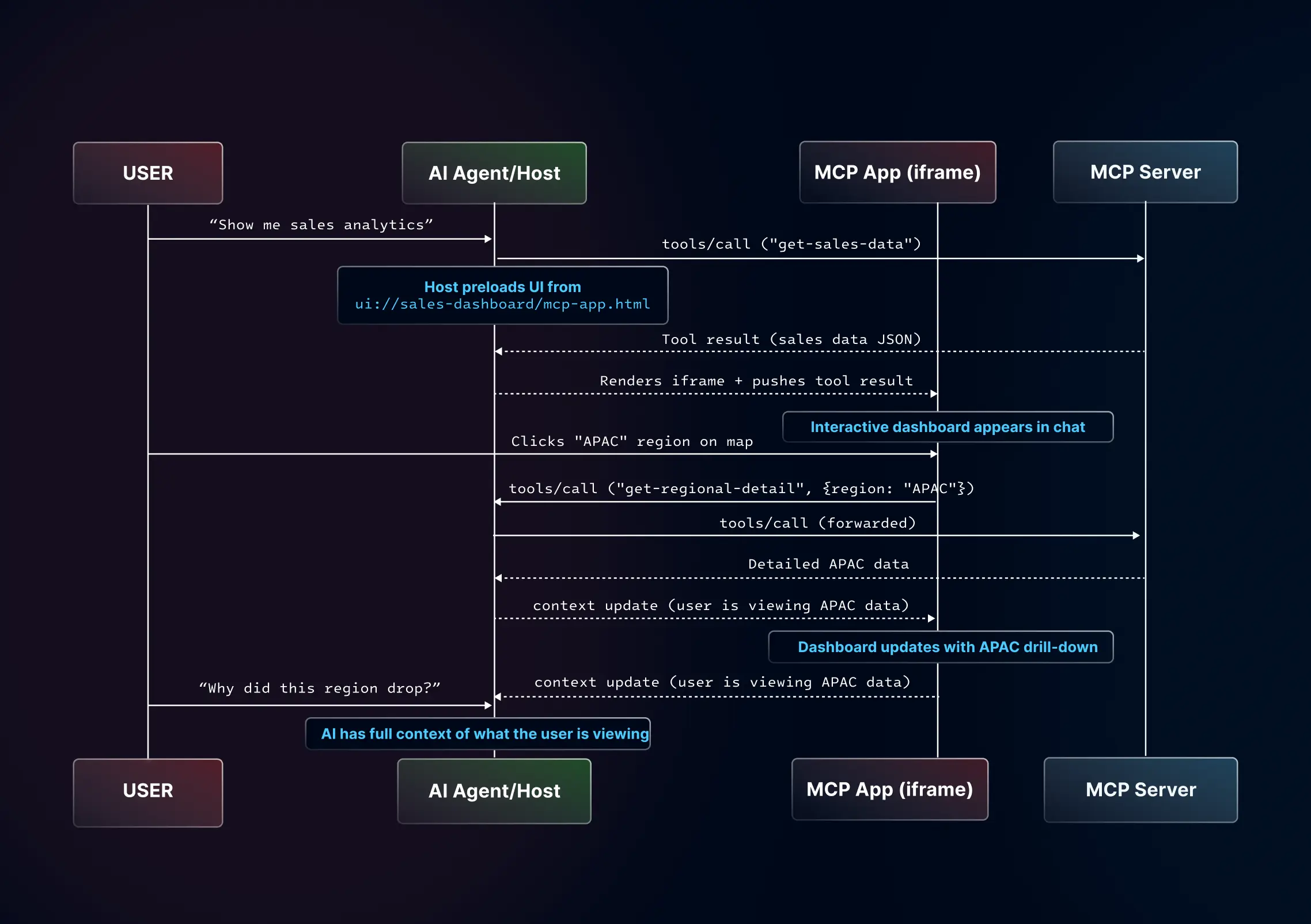
How communication flows with MCP Apps
Here’s the full sequence of what happens when a user triggers an MCP App:
The key insight: the app, the AI, and the server form a feedback loop. The user interacts with the app, the app calls tools, the server returns data, the app updates, and the AI stays informed of the entire context.
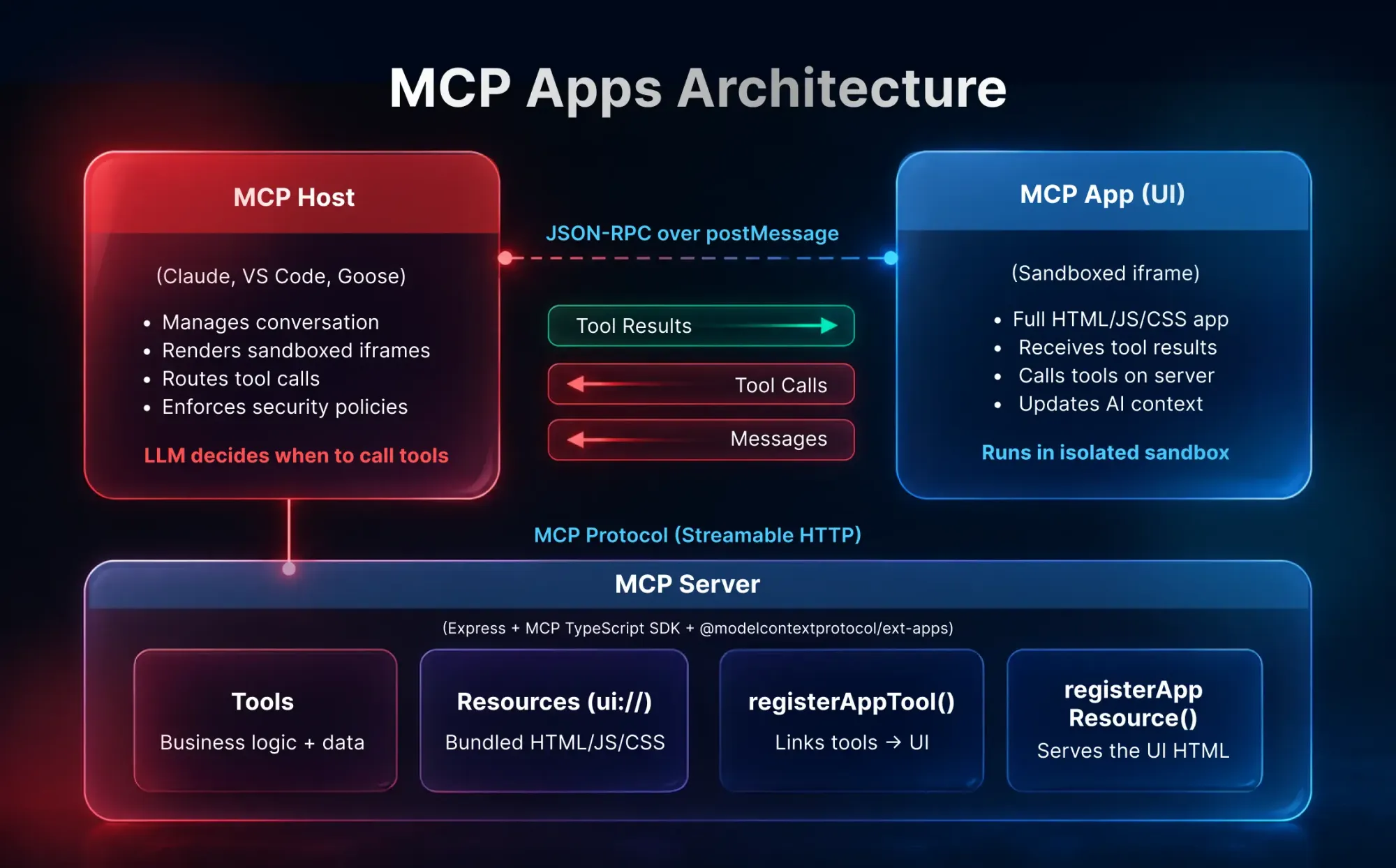
MCP Apps’ architecture: A deep dive
Let’s look at the three main participants and how they connect:
The ui:// resource scheme
The magic glue is the ui:// URI scheme. When you register a tool, you include a _meta.ui.resourceUri field that points to a ui:// resource. This tells the host: “Hey, this tool has an interactive UI — fetch it and render it when this tool is called.”
The host can even preload this UI before the tool is called, so when the AI invokes it, the interface appears instantly. The tool result is then pushed to the already-rendered app.
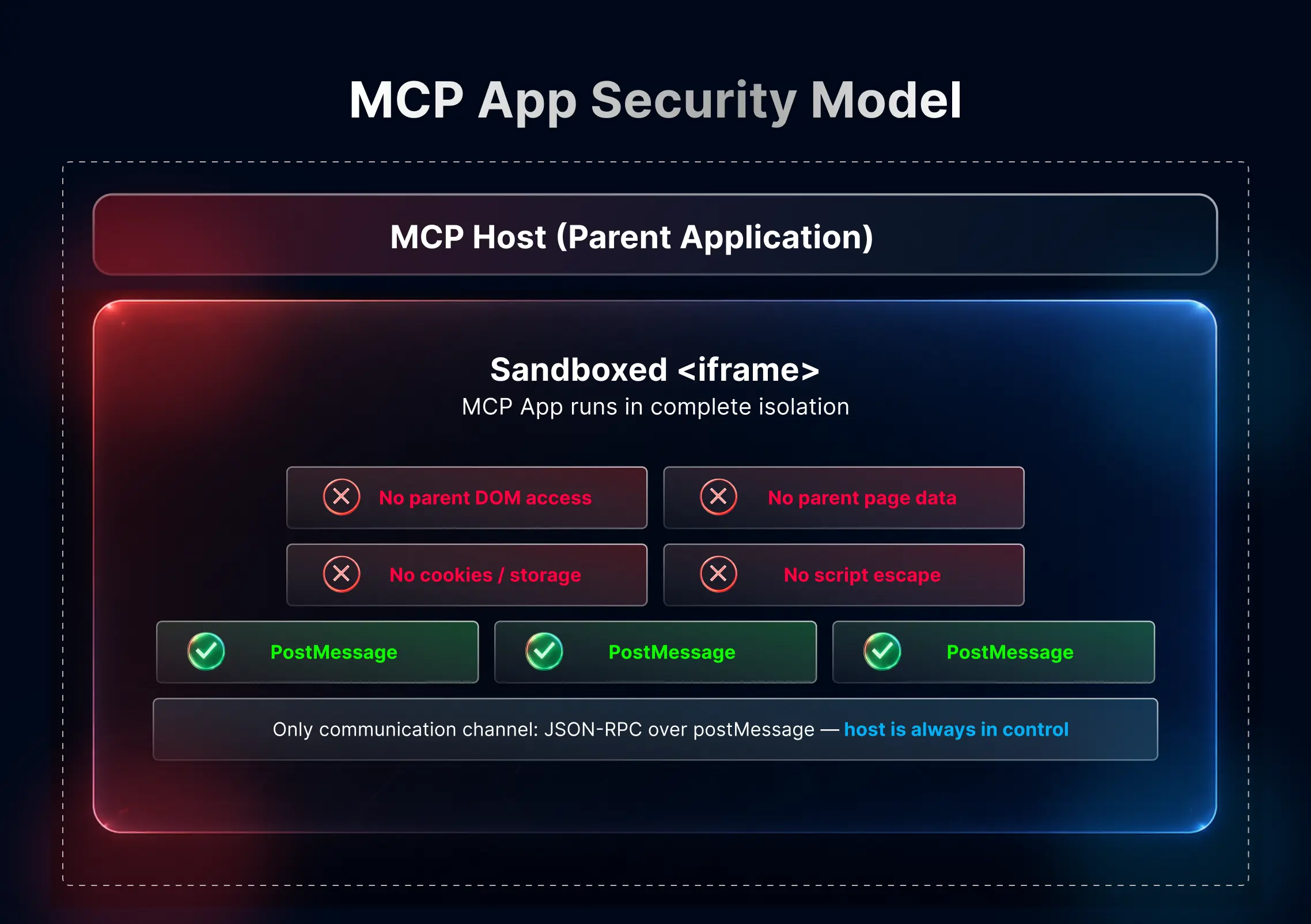
MCP App security model: Defense in depth
One of the smartest aspects of MCP Apps is the security model. Since you’re rendering third-party HTML inside your AI chat, security is paramount.
MCP Apps run inside a sandboxed iframe, which provides strong isolation:
Security Feature
What It Does
Sandboxed iframe
Complete isolation from the host application
No DOM access
Cannot read or modify the parent page
No cookie/storage access
Cannot access host’s cookies or localStorage
postMessage only
The only communication channel — JSON-RPC over postMessage
Camera, microphone, etc. require explicit permission
Link sandboxing
External URLs opened only via sendOpenLink (host-controlled)
The host is always in control. It decides which tools the app can call, what permissions it gets, and what external resources it can load. The app can’t escape its sandbox.
Real-world examples
The MCP Apps ecosystem is growing fast. Here are some examples that show the range of interactive UI experiences MCP Apps can bring in:
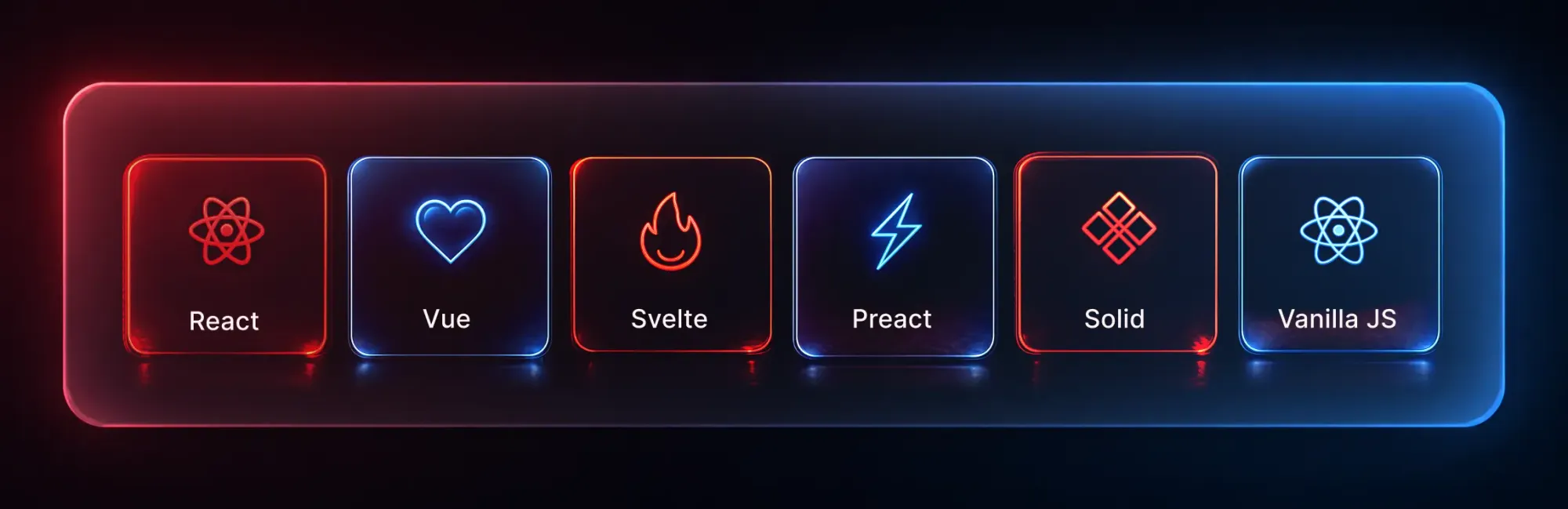
MCP Apps are framework-agnostic. Since the communication protocol is built on standard web primitives (postMessage + JSON-RPC), you can use any web framework — or none at all.
The @modelcontextprotocol/ext-apps SDK provides the App class that works everywhere. Official starter templates are available for:
If you’re building your own MCP host and want to add MCP Apps support, you have two options: - @mcp-ui/client — Ready-made React components for rendering MCP Apps - App Bridge — Lower-level SDK module for iframe management, message passing, and security
MCP Apps are extensions to the Model Context Protocol that let MCP servers return interactive UI elements, such as charts, forms, dashboards, maps, or 3D views, directly inside an AI conversation.
2. How are MCP Apps different from MCP servers?
An MCP server lets an AI model access tools, data, and actions. An MCP App adds the visual layer, allowing the AI to show interactive interfaces inside the chat instead of only returning text.
3. How do MCP Apps work?
MCP Apps work by connecting MCP tools with UI resources. A tool declares a ui:// resource, the host fetches and renders the HTML in a sandboxed iframe, and the app communicates with the host through JSON-RPC over postMessage.
4. What is the ui:// resource in MCP Apps?
The ui:// resource tells the MCP host where to find the interactive UI linked to a tool. When that tool is called, the host can load and display the UI directly inside the AI conversation.
5. Are MCP Apps secure?
Yes. MCP Apps run inside sandboxed iframes, which isolate them from the host application. They cannot access the parent DOM, cookies, or local storage, and communication happens through controlled message passing.
6. When should you use an MCP App instead of a normal MCP tool?
Use an MCP App when the result needs interaction, not just a text response. Examples include exploring data, filling forms, viewing dashboards, reviewing media, or working through multi-step workflows.